 ES
ES  IT
IT  DE
DE  FR
FR  EN
EN 
Start
This chapter describes the following subjects :
Although you are used to creating an account on a site, we would like to remind some basic information.
1) Creation of an Account
The main scope of an account is to be able to invoice this site's services.
If you don't buy anything, an account won't be useful.
It gives access to the technical and administrative support.
In case of need, it allows to safely exchange legal documents with the site's administrator.
Here are the steps to follow :
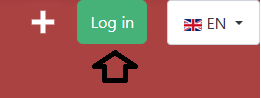
1) Click the "Log-in" link.
2) Within the window that gets opened, click "Register".
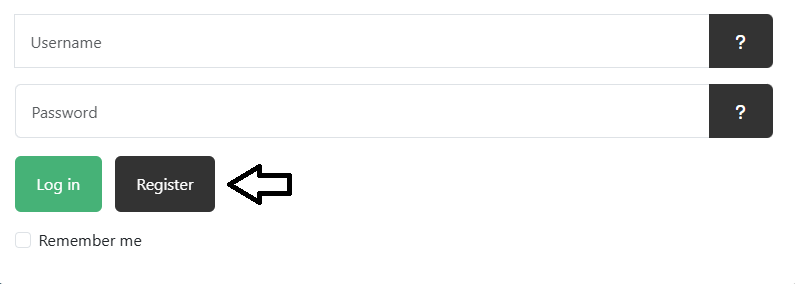
3) Insert the basic information.
If by the end of the procedure you save the account with an already existing user name, you will see an error message at the top of the page.
4) Your region
Select the region. It will be used for a correct application of the VAT.
5) Fill the boxes in relation with the protection of your personal data.
Once you click the "Register" button at the bottom of the page, you will receive an email.
Make sure it doesn't arrive in the Spams and/or that your email client application accepts incoming messages from "telintell.com".
Follow the instructions therein.
You account is now accessible.
IMPORTANT : For your first access, please get acquainted with the data described at the "How does the Two-Step Verification work ?" line below.
2) Editing an Account
When you register your account, you will directly access your profile's page :

Edit any useful information.
IMPORTANT : The "Retype Password" field bears a red star, that gives the impression it is mandatory when you edit or update some information.

This is not the case. It is mandatory only if you edit your password.
Otherwise, for any other editing, leave this field empty and confirm your modifications.
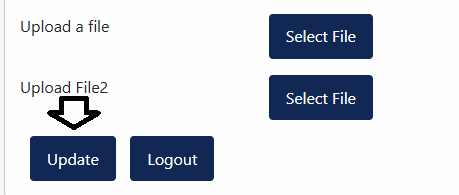
Click the "Update" button at the bottom of the page to confirm your changes.
Forgotten userame or password
If you forgot your userame or your password, click the "Log-in" link.
Within the window that gets opened, click the question marks, "Forgotten Username ?" or "Forgotten password ?", accordingly.
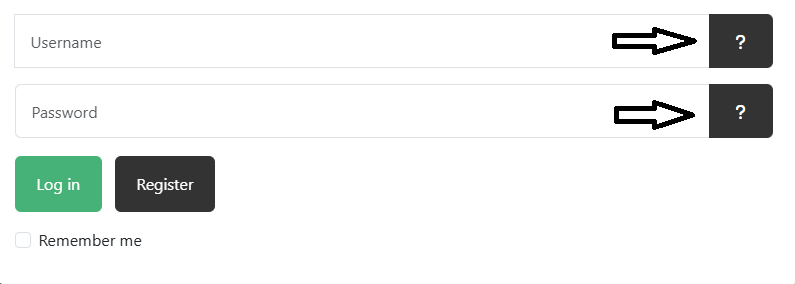
You will be directed to the page that will allow you to retrieve one or the other.
3) Deleting an Account
The procedure to delete an account is described at the "Legal" page, "Privacy", "Privacy Policy", "GDPR" tab, "Deletion of your Personal Data" section.
Traditionally, you use your username and your password to access your account.
The Two Step Verification is an addtional security feature to access it.
By default, it's not enabled.
If it is, after having confirmed your credentials, you receive an email with a code within, to be inserted in the appropriate field, on the site :
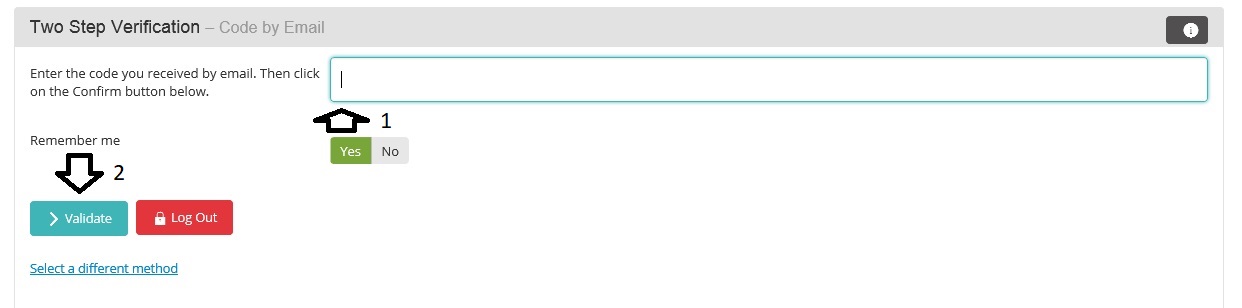
If the code is not inserted, the account access is blocked.
Unless your email address has been hacked, you will be the only one able to add this little code.
Here are the steps to follow to activate the service :
1) After having created your account, you will access it for the first time. If on the screen you are asked whether you want to enable the service :
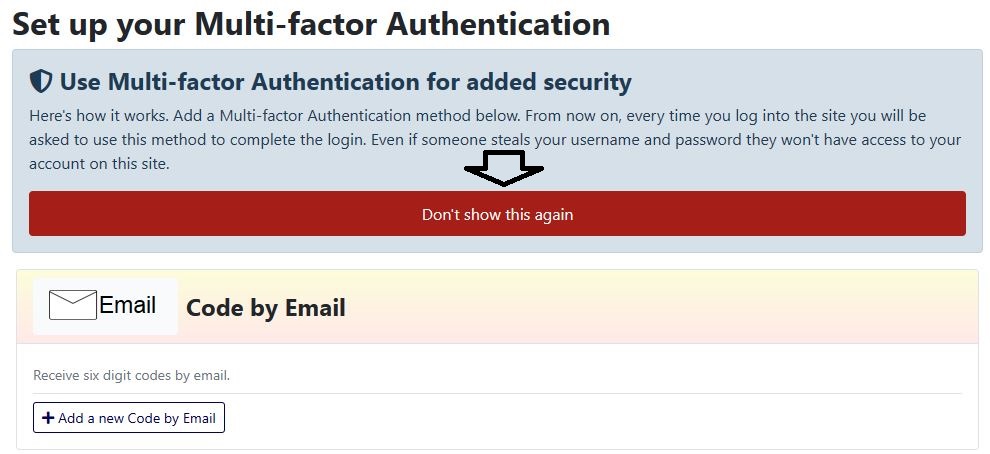
Click the "Don't show this again" red button. You will be able to manage the service later.
2) Once in your account, open your profile's page, and click on this button :
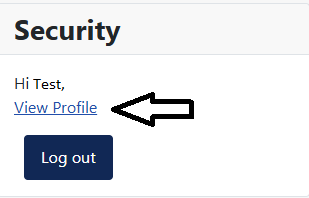
Then on the right, on "Edit Profile" :

3) At the bottom of the page, click on "Add a new code by Email" :
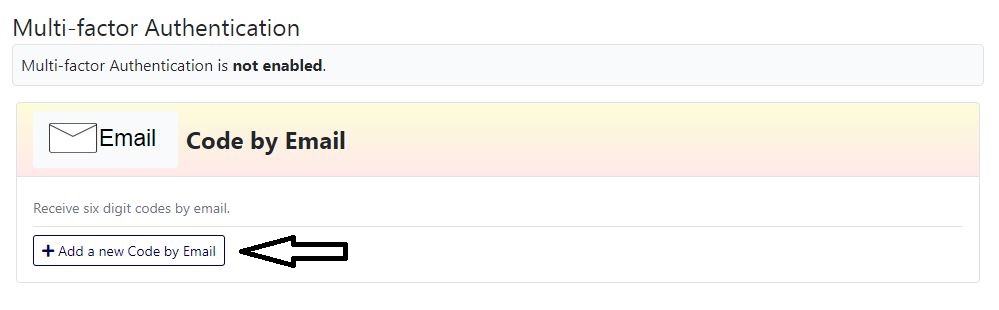
4) Within 30-45 seconds you will receive an email, containing a 6 digits code. For instance -304111 -.
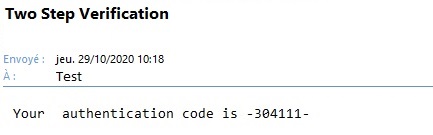
If it doesn't arrive, force the incoming messages of your email client.
5) Copy the code without the hyphens (so 304111), insert it in the appropriate area and confirm.
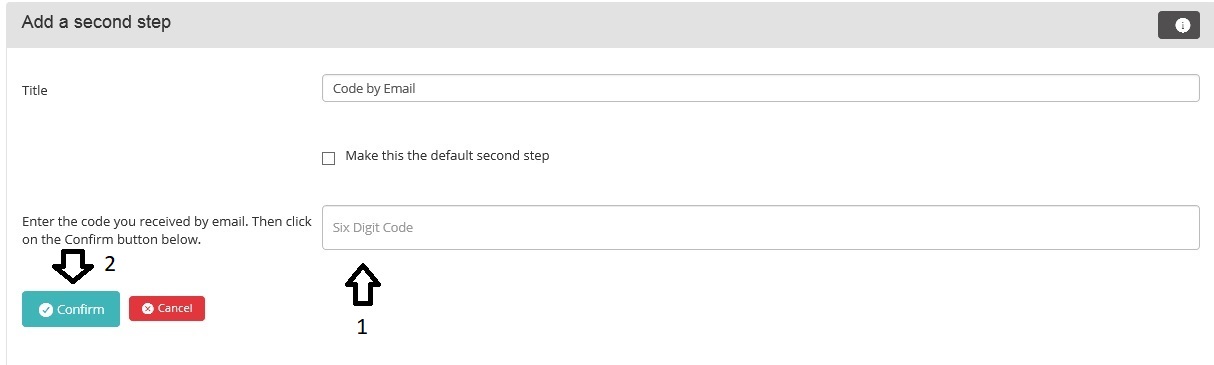
Note : If by mistake the system sends more than one message, use the code belonging to the one received as last.
6) The system is enabled.
Next time you will log-in, you will see this :
You will have to insert the code received by email before accessing your account.
7) Click the "Backup Codes" line.
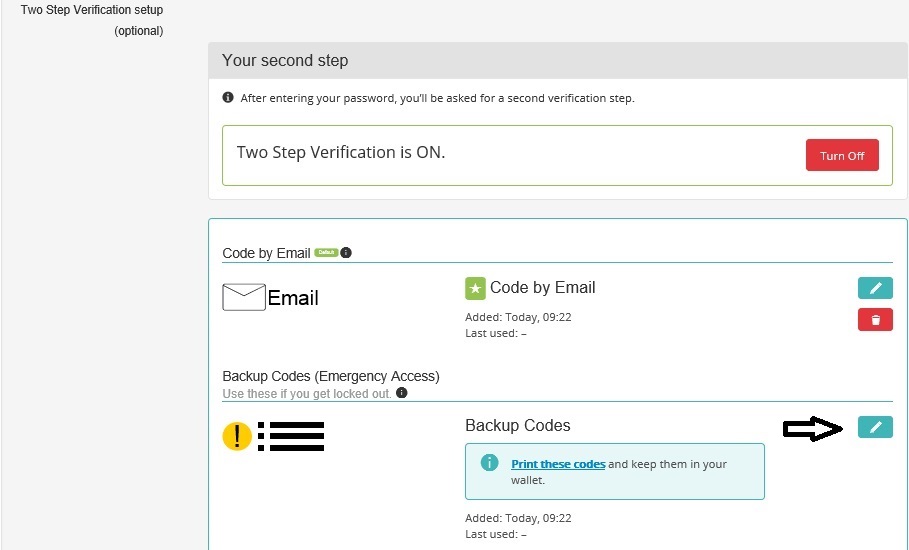
8) Copy the displayed codes and store them in a safe place.
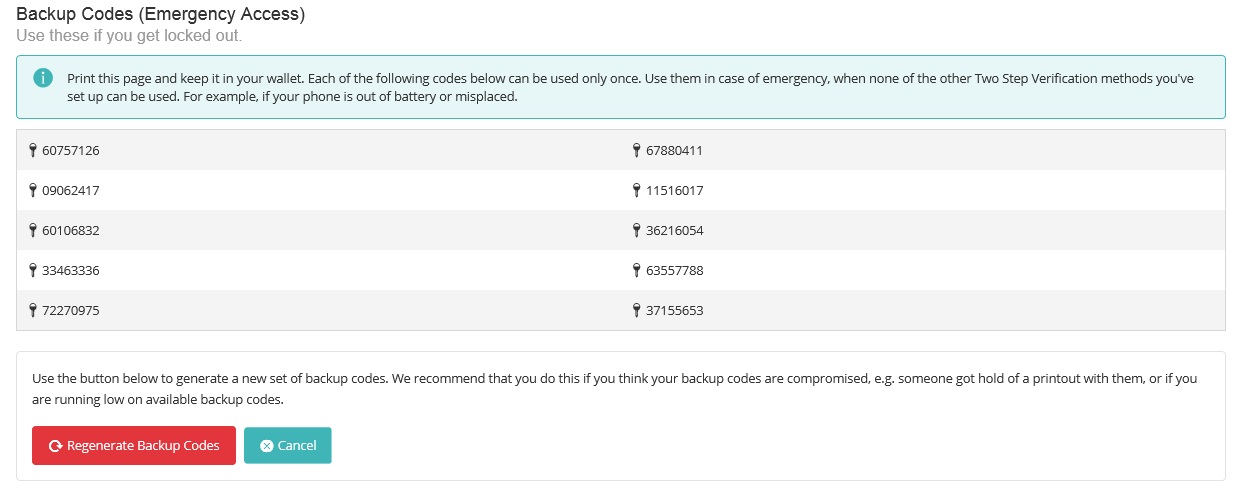
You can use them if by mistake you do not receive the email after you logged-in.
Each code can replace the one that hasn't been received by email, but it can only be used once.
When all the codes have been used, you will have to click the "Regenerate Backup Codes" red button.
9) If during step 6 you do not receive the email, click the "Select a different method" blue line (Under the "Validate" green button). You will see this :
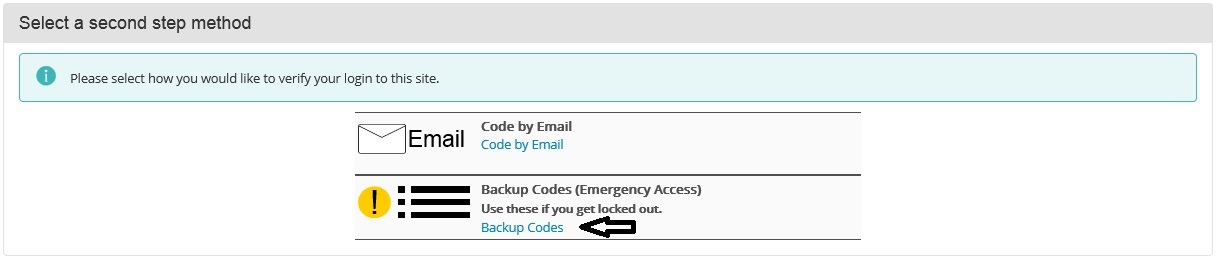
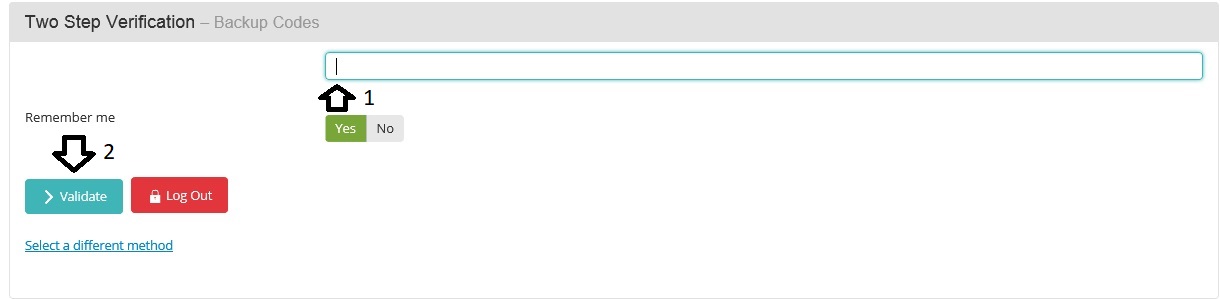
Click the "Backup Codes" line. Insert one of the available codes and confirm.
To definitely disable the Two-Step Verification option, click on "Turn Off" :

Your choice is confirmed.

If the option is still enabled and, in an extreme case, you are unable to access your account, send a message from the Contact page using your account's email.
The service will be manually deactivated, long enough for you to access it again.
If you try to access your account and an error message is displayed, while you are certain your credentials are correct, the possible solutions are :
1) Clean up the cookies of your navigator and try again
2) Access the account from a page belonging to your language (Ex. If you registered your account in English, log-in from an English page).
Sometimes the system treats the access from a page bearing a different language as a security liability.
3) Create a new password through the "Forgot password ?" page
4) Send us a message from the contact page, using your account's e-mail address
To confirm your subscriptions' payment, we use the PayPal platform.
Since all subscriptions work on the basis of a recurring payment (the monthly sum is automatically drawn by PayPal), we strongly recommend you get acquainted with the exact procedure in the Support page of your account, My Account section.
